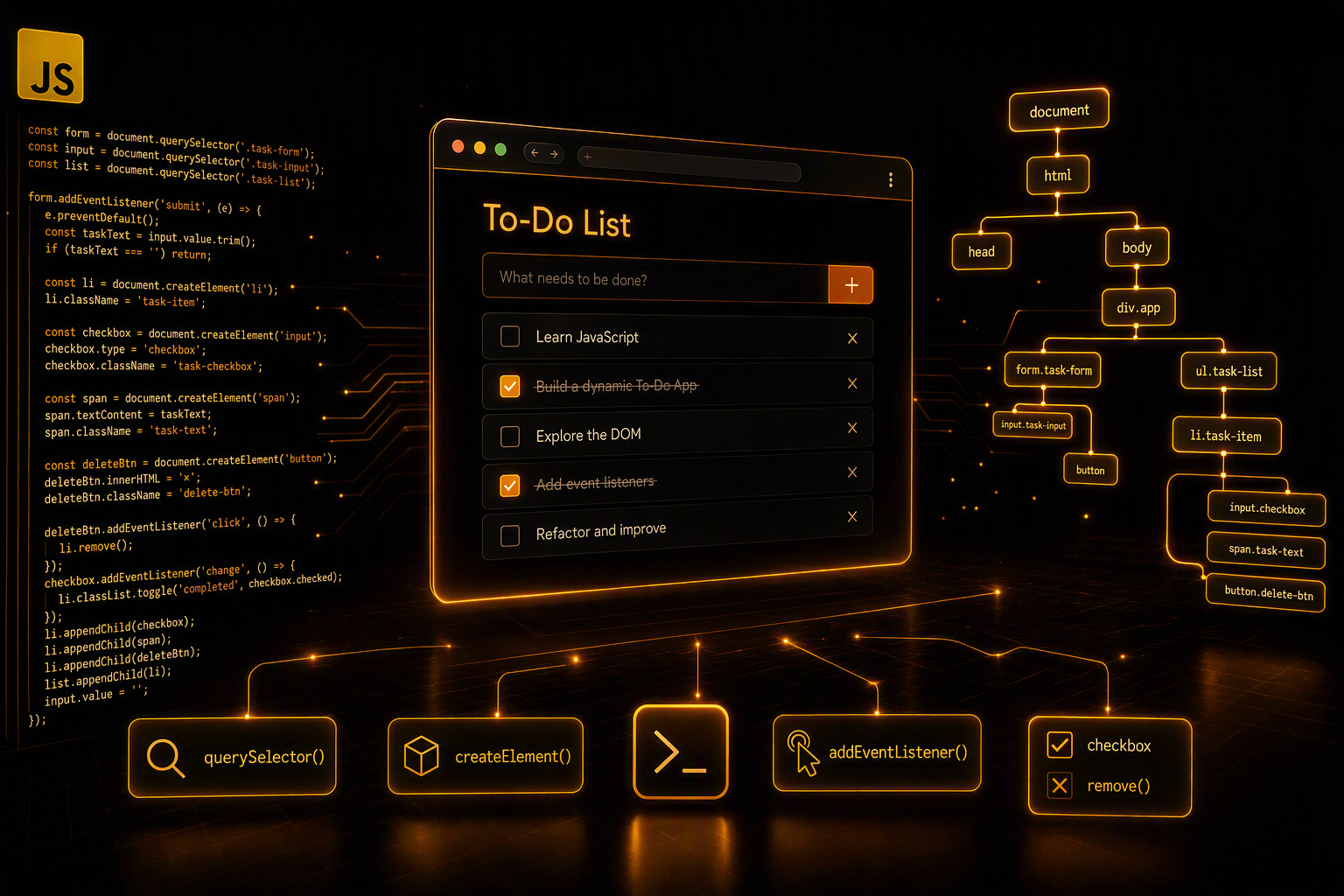
JavaScript becomes much more interesting when your code starts changing what users actually see on a web page.
Click a button and something appears. Add a task and the page updates instantly. Delete an item and it disappears without refreshing the browser.
This is where the DOM — Document Object Model comes in.
In this practical guide, we will learn the basics of JavaScript DOM manipulation by building a complete Dynamic To-Do List App from scratch.
By the end of the project, you will know how to:
Select HTML elements with querySelector()
Create new elements with createElement()
Change text and element properties
Listen for user actions with addEventListener()
Add elements to the page
Delete elements dynamically
Work with keyboard events
Understand how JavaScript communicates with HTML
Let’s start coding!
1. What Is the DOM?
When a browser loads an HTML document, it doesn’t simply display the HTML and forget about it.
Instead, it creates a structured representation of the page called the Document Object Model, or DOM.
Imagine this HTML:
<body>
    <h1>My Tasks</h1>

    <div>
        <input type="text">
        <button>Add Task</button>
    </div>

    <ul>
        <li>Learn JavaScript</li>
    </ul>
</body>
The browser sees something similar to a tree:
document
└── html
    └── body
        ├── h1
        ├── div
        │   ├── input
        │   └── button
        └── ul
            └── li
Every HTML element becomes an object that JavaScript can interact with.
JavaScript can therefore tell the browser things like:
Find this button.
Change this text.
Create a new list item.
Remove this element.
Add a CSS class.
Run some code when this button is clicked.
That is DOM manipulation.
2. Our Project: Dynamic To-Do List
We are going to create a simple application where users can:
Type a task.
Click Add Task.
See the task appear immediately.
Mark tasks as completed.
Delete tasks.
Add tasks by pressing Enter.
Our project will use three files:
todo-app/
│
├── index.html
├── style.css
└── script.js
HTML creates the structure.
CSS handles the appearance.
JavaScript provides the behavior.
3. Creating the HTML
Let’s begin with index.html.
<!DOCTYPE html>
<html lang="en">
<head>
    <meta charset="UTF-8">
    <meta name="viewport" content="width=device-width, initial-scale=1.0">

    <title>JavaScript To-Do List</title>

    <link rel="stylesheet" href="style.css">
</head>

<body>

    <div class="todo-app">

        <h1>My To-Do List</h1>

        <div class="input-area">
            <input
                type="text"
                id="taskInput"
                placeholder="Enter a new task..."
            >

            <button id="addButton">
                Add Task
            </button>
        </div>

        <ul id="taskList"></ul>

    </div>

    <script src="script.js"></script>

</body>
</html>
Notice the three important elements:
<input id="taskInput">
<button id="addButton">Add Task</button>
<ul id="taskList"></ul>
JavaScript will interact with these elements.
The id attributes make them easy to find.
4. Selecting Elements with querySelector()
Before JavaScript can modify an HTML element, it normally needs to find it.
One of the most useful DOM methods for this is:
document.querySelector()
Open script.js and add:
const taskInput = document.querySelector("#taskInput");
const addButton = document.querySelector("#addButton");
const taskList = document.querySelector("#taskList");
Now our JavaScript has references to those HTML elements.
For example:
console.log(taskInput);
The browser console will show the input element.
Why the # Symbol?
querySelector() uses CSS selector syntax.
To select an ID:
document.querySelector("#taskInput");
To select a class:
document.querySelector(".todo-app");
To select an HTML element:
document.querySelector("button");
This makes querySelector() extremely flexible.
5. Listening for Events
Web applications are driven by events.
An event is something that happens in the browser.
Examples include:
click
keydown
keyup
input
change
submit
mouseover
scroll
For our application, we want something to happen when the user clicks the Add Task button.
We can use:
addButton.addEventListener("click", function () {
    console.log("Button clicked!");
});
Now every time the button is clicked, JavaScript runs the function.
Try it.
Open the browser’s developer console and click the button.
You should see:
Button clicked!
Congratulations — your page is now interactive.
6. Reading the User’s Input
The text inside an input element is available through its value property.
For example:
const taskText = taskInput.value;
Let’s test it:
addButton.addEventListener("click", function () {

    const taskText = taskInput.value;

    console.log(taskText);

});
Type:
Learn JavaScript
Then click Add Task.
The console should display:
Learn JavaScript
But we don’t want the task in the console.
We want it on the page.
For that, we need to create a new HTML element.
7. Creating Elements with createElement()
JavaScript can create HTML elements dynamically.
The method is:
document.createElement()
For example:
const listItem = document.createElement("li");
This creates:
<li></li>
But it hasn’t been added to the page yet.
First, let’s give it some text:
listItem.textContent = "Learn JavaScript";
Our element now represents:
<li>Learn JavaScript</li>
We can then insert it into our task list:
taskList.appendChild(listItem);
Now it becomes visible.
8. Building Our addTask Function
Instead of putting everything inside the click event, let’s create a reusable function.
function addTask() {

    const taskText = taskInput.value;

    const listItem = document.createElement("li");

    listItem.textContent = taskText;

    taskList.appendChild(listItem);

}
Then connect it to our button:
addButton.addEventListener("click", addTask);
Try the application.
Type:
Finish JavaScript project
Click Add Task.
The task should instantly appear on the page.
No refresh.
No new page.
That’s DOM manipulation in action.
9. Preventing Empty Tasks
There is currently a small problem.
Users can click Add Task without typing anything.
That creates an empty list item.
We can prevent this with an if statement.
function addTask() {

    const taskText = taskInput.value.trim();

    if (taskText === "") {
        return;
    }

    const listItem = document.createElement("li");

    listItem.textContent = taskText;

    taskList.appendChild(listItem);

}
The trim() method removes unnecessary spaces from the beginning and end of a string.
For example:
" Learn JavaScript ".trim();
becomes:
Learn JavaScript
If nothing remains after trimming, the function stops because of:
return;
10. Clearing the Input
After adding a task, the old text remains inside the input field.
Let’s clear it.
Add:
taskInput.value = "";
Our function becomes:
function addTask() {

    const taskText = taskInput.value.trim();

    if (taskText === "") {
        return;
    }

    const listItem = document.createElement("li");

    listItem.textContent = taskText;

    taskList.appendChild(listItem);

    taskInput.value = "";

}
We can also return focus to the input:
taskInput.focus();
Now users can immediately start typing another task.
11. Adding a Delete Button
A to-do list isn’t very useful if tasks can never be removed.
Let’s dynamically create a Delete button for every task.
Inside addTask():
const deleteButton = document.createElement("button");

deleteButton.textContent = "Delete";
Then add it to our list item:
listItem.appendChild(deleteButton);
Our generated HTML will effectively look like:
<li>
    Learn JavaScript
    <button>Delete</button>
</li>
But clicking the button currently does nothing.
Time for another event listener.
12. Deleting Elements
Add this code:
deleteButton.addEventListener("click", function () {

    listItem.remove();

});
The remove() method removes the element from the DOM.
The complete section becomes:
const deleteButton = document.createElement("button");

deleteButton.textContent = "Delete";

deleteButton.addEventListener("click", function () {

    listItem.remove();

});

listItem.appendChild(deleteButton);
Every task receives its own delete button.
And because each button’s event listener knows about its own listItem, it removes the correct task.
13. Marking Tasks as Completed
Let’s make our application slightly more useful.
When a user clicks a task, we’ll toggle a CSS class called:
completed
Add:
listItem.addEventListener("click", function () {

    listItem.classList.toggle("completed");

});
classList.toggle() works like a switch.
If the class doesn’t exist, JavaScript adds it.
If it already exists, JavaScript removes it.
For example:
<li>Learn JavaScript</li>
can become:
<li class="completed">Learn JavaScript</li>
We can then style that class with CSS.
14. Adding Some CSS
Create style.css.
* {
    box-sizing: border-box;
}

body {
    font-family: Arial, sans-serif;
    background: #f4f4f4;
    margin: 0;
    padding: 40px 20px;
}

.todo-app {
    max-width: 600px;
    margin: auto;
    background: white;
    padding: 30px;
    border-radius: 12px;
}

h1 {
    text-align: center;
}

.input-area {
    display: flex;
    gap: 10px;
}

#taskInput {
    flex: 1;
    padding: 12px;
    font-size: 16px;
}

#addButton {
    padding: 12px 20px;
    cursor: pointer;
}

#taskList {
    list-style: none;
    padding: 0;
    margin-top: 25px;
}

#taskList li {
    display: flex;
    justify-content: space-between;
    align-items: center;
    padding: 12px;
    margin-bottom: 8px;
    background: #eeeeee;
    cursor: pointer;
}

#taskList li button {
    padding: 6px 10px;
    cursor: pointer;
}

.completed {
    text-decoration: line-through;
    opacity: 0.5;
}
Our app now looks much more like a real interface.
15. A Small Event Problem
There is an interesting issue in our code.
Remember this?
listItem.addEventListener("click", function () {
    listItem.classList.toggle("completed");
});
And our delete button:
deleteButton.addEventListener("click", function () {
    listItem.remove();
});
When the delete button is clicked, that click also belongs to the <li> because the button exists inside it.
This behavior is related to event bubbling.
We can stop the delete button’s click event from triggering the parent event:
deleteButton.addEventListener("click", function (event) {

    event.stopPropagation();

    listItem.remove();

});
Now clicking Delete only deletes the task.
This small example introduces an important JavaScript concept: events can travel through the DOM hierarchy.
16. Adding Tasks with the Enter Key
Users shouldn’t always have to click a button.
Let’s allow them to press Enter.
Add:
taskInput.addEventListener("keydown", function (event) {

    if (event.key === "Enter") {
        addTask();
    }

});
Now both of these work:
Type task → Click Add Task
and:
Type task → Press Enter
This small improvement makes the application feel much more natural.
17. Complete JavaScript Code
Here is our finished script.js:
const taskInput = document.querySelector("#taskInput");
const addButton = document.querySelector("#addButton");
const taskList = document.querySelector("#taskList");


function addTask() {

    const taskText = taskInput.value.trim();

    if (taskText === "") {
        return;
    }


    // Create the task
    const listItem = document.createElement("li");

    listItem.textContent = taskText;


    // Create the delete button
    const deleteButton = document.createElement("button");

    deleteButton.textContent = "Delete";


    // Delete task
    deleteButton.addEventListener("click", function (event) {

        event.stopPropagation();

        listItem.remove();

    });


    // Mark task as completed
    listItem.addEventListener("click", function () {

        listItem.classList.toggle("completed");

    });


    // Add button to task
    listItem.appendChild(deleteButton);


    // Add task to list
    taskList.appendChild(listItem);


    // Clear input
    taskInput.value = "";

    taskInput.focus();

}


// Add task with button
addButton.addEventListener("click", addTask);


// Add task with Enter
taskInput.addEventListener("keydown", function (event) {

    if (event.key === "Enter") {
        addTask();
    }

});
18. What Is Actually Happening?
Let’s look at the process from beginning to end.
The user types:
Study JavaScript
JavaScript reads the value:
taskInput.value
JavaScript creates an element:
document.createElement("li");
It adds the text:
listItem.textContent = taskText;
It creates another element:
document.createElement("button");
It attaches event listeners:
addEventListener()
Finally, JavaScript inserts everything into the DOM:
taskList.appendChild(listItem);
The browser immediately renders the updated DOM.
That’s why the page changes without being refreshed.
19. querySelector vs querySelectorAll
We used:
document.querySelector()
This returns the first element matching a selector.
For example:
const button = document.querySelector("button");
But what if we want every button?
We can use:
document.querySelectorAll("button");
Example:
const buttons = document.querySelectorAll("button");

console.log(buttons);
We can loop through them:
buttons.forEach(function (button) {

    console.log(button.textContent);

});
A simple way to remember the difference is:
querySelector()     → first matching element

querySelectorAll()  → all matching elements
20. createElement vs innerHTML
You may see tutorials using:
taskList.innerHTML += "<li>New Task</li>";
It looks easier, but it isn’t always the best approach.
createElement() gives us direct control over elements:
const li = document.createElement("li");

li.textContent = taskText;

taskList.appendChild(li);
It also makes attaching event listeners straightforward.
For user-generated text, using textContent is generally safer than inserting user input directly as HTML.
Consider this:
listItem.textContent = taskInput.value;
The browser treats the value as text.
That’s exactly what we want for a simple task name.
21. Understanding the Most Important DOM Methods
Our small project already introduced several essential DOM tools.
Select an element
document.querySelector("#taskInput");
Select multiple elements
document.querySelectorAll(".task");
Create an element
document.createElement("li");
Change text
element.textContent = "Hello!";
Add an element
parent.appendChild(element);
Remove an element
element.remove();
Add an event
element.addEventListener("click", function () {
    // Code
});
Add a CSS class
element.classList.add("active");
Remove a CSS class
element.classList.remove("active");
Toggle a CSS class
element.classList.toggle("active");
These methods are enough to build a surprising number of interactive web projects.
22. Challenge: Improve the Project
Now that the basic application works, try extending it yourself.
Here are some ideas:
Challenge 1 — Task Counter
Display:
3 Tasks Remaining
Update the number whenever a task is added, completed, or deleted.
Challenge 2 — Delete All Button
Create a button that removes every task.
You might experiment with:
taskList.innerHTML = "";
Challenge 3 — Task Priorities
Allow users to choose:
Low
Medium
High
Then assign different CSS classes to each task.
Challenge 4 — Edit Tasks
Add an Edit button beside Delete.
Let users modify an existing task instead of deleting and recreating it.
Challenge 5 — Save Tasks
At the moment, refreshing the page destroys our tasks.
The next step would be learning:
localStorage
With LocalStorage, the browser can remember the tasks even after the page is closed.
23. Why DOM Manipulation Matters
DOM manipulation isn’t only useful for to-do lists.
The same techniques appear everywhere on the modern web.
A navigation menu opening?
classList.toggle()
A notification appearing?
createElement()
A user clicking a button?
addEventListener()
A search result being dynamically displayed?
appendChild()
A shopping cart item being removed?
remove()
A form reading what the user typed?
input.value
Once you understand these concepts, websites stop feeling like static HTML documents.
They become programmable interfaces.
Final Thoughts
Our To-Do List is a small project, but it demonstrates some of the most important ideas in front-end JavaScript.
We started with static HTML and taught JavaScript how to:
document.querySelector()
document.createElement()
element.addEventListener()
element.appendChild()
element.classList.toggle()
element.remove()
The most important lesson isn’t memorizing every method.
It’s understanding the basic relationship:
HTML creates elements. CSS styles them. JavaScript finds them, changes them, creates new ones, removes them, and reacts to what the user does.
Once that idea clicks, DOM manipulation becomes much easier.
And from here, you can build far more than a To-Do List: interactive forms, calculators, dashboards, games, shopping carts, note-taking apps, search interfaces, and complete browser applications.
Your static webpage just became an application.