When you press the power button on your computer, something fascinating happens before you see the Windows logo, your desktop, or your favorite applications. A hidden piece of software quietly takes control, checks your hardware, prepares your system, and begins the journey that brings your computer to life.
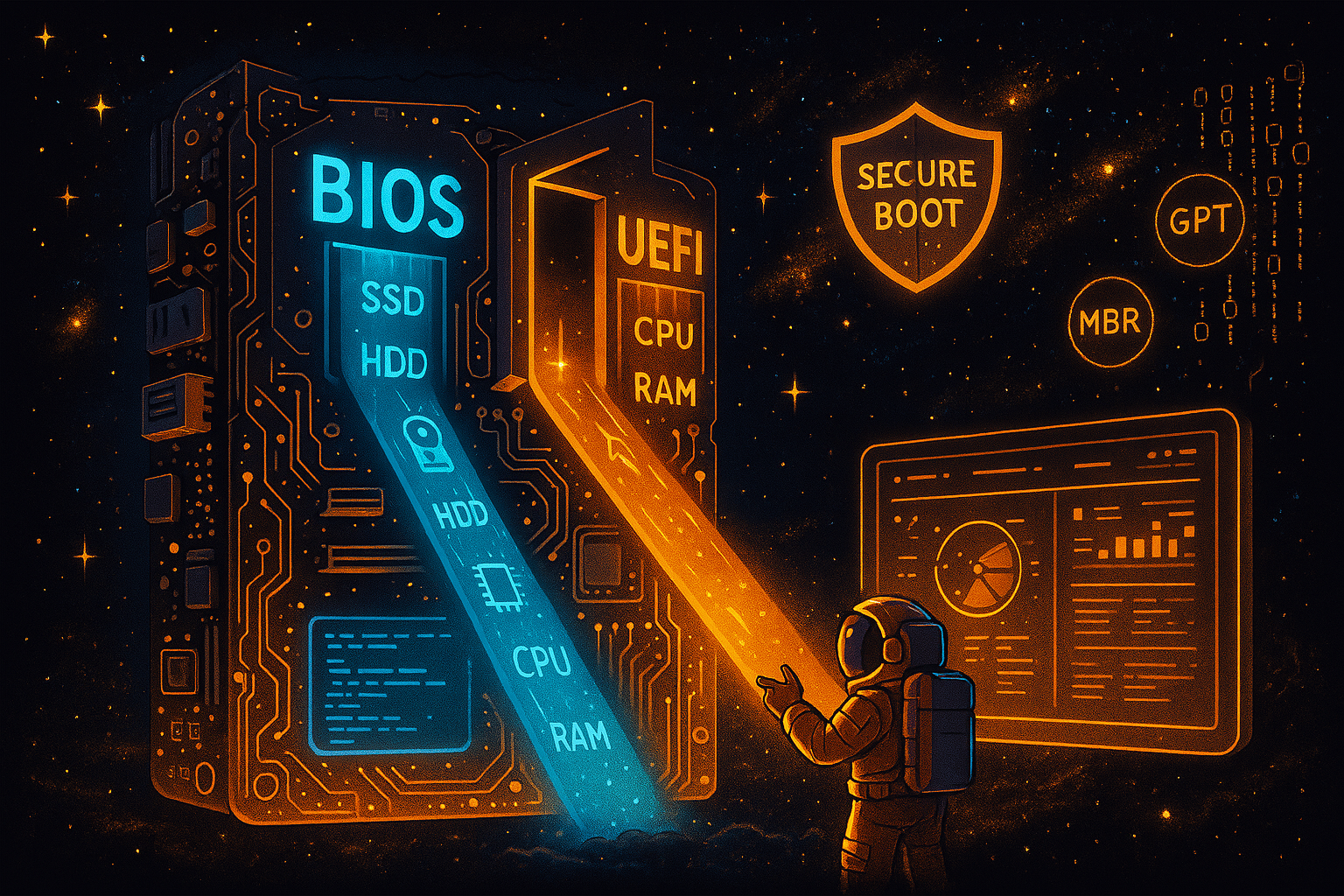
This invisible hero is called firmware — and for decades, two major technologies have dominated this world: BIOS (Basic Input/Output System) and UEFI (Unified Extensible Firmware Interface).
Many users have entered the BIOS or UEFI settings screen while changing boot options, enabling virtualization, adjusting RAM settings, or installing a new operating system. But what exactly happens behind that mysterious blue or graphical menu? Why did UEFI replace BIOS? And what advantages does modern UEFI bring to today’s powerful computers?
Let’s explore the hidden software that starts everything. 🌍✨
🖥️ What Is BIOS? The Original Computer Startup Technology
BIOS (Basic Input/Output System) is a firmware interface that has been powering computers since the early days of personal computing.
Originally introduced in the late 1970s and widely popularized with IBM-compatible PCs in the 1980s, BIOS became the standard method for allowing the operating system and hardware components to communicate.
Think of BIOS as a translator between your computer’s hardware and software.
When you turn on your PC, BIOS immediately begins working:
🔹 Checks whether essential hardware is working
🔹 Detects RAM, CPU, keyboard, storage devices, and other components
🔹 Performs the POST (Power-On Self-Test)
🔹 Finds a boot device
🔹 Loads the operating system
Without BIOS, your computer would simply be a collection of electronic components with no instructions on how to start.
⚙️ How Does Traditional BIOS Work?
The startup process of a BIOS-based computer follows several steps:
1. Power Button Press 🔌
Electricity reaches the motherboard, and the CPU receives its first instructions from the BIOS chip.
2. Hardware Check (POST) 🔍
BIOS examines important components:
Processor
RAM
Graphics card
Storage drives
Keyboard and other peripherals
If something is wrong, BIOS may produce warning sounds called beep codes.
3. Finding the Boot Device 💾
BIOS searches for a device containing an operating system.
For example:
SSD
HDD
USB drive
Optical disk
4. Loading the Bootloader 🚀
BIOS loads the bootloader from the storage device, which then starts Windows, Linux, or another operating system.
Simple, reliable, and revolutionary — but technology eventually moved beyond its limits.
⚠️ The Limitations of BIOS
Although BIOS was incredibly successful, it was designed for a much older era of computers.
Modern hardware became faster and more complex, creating problems that traditional BIOS could not solve.
1. Limited Storage Support 📦
Traditional BIOS commonly uses the MBR (Master Boot Record) partition system.
MBR has limitations:
Maximum disk size around 2 TB
Maximum four primary partitions
Modern computers often use:
4 TB SSDs
8 TB HDDs
Multiple storage devices
BIOS was simply not designed for this future.
2. Slow Startup Times ⏱️
BIOS performs hardware checks using older methods.
Modern computers need faster startup processes, especially with:
NVMe SSDs
High-performance CPUs
Large amounts of RAM
3. Limited Interface Design 🎨
Traditional BIOS menus usually look simple:
Keyboard-only navigation
Text-based interface
Limited customization
Compared to modern technology, BIOS feels like a system from another generation.
🌟 What Is UEFI? The Modern Replacement for BIOS
UEFI (Unified Extensible Firmware Interface) is the modern firmware standard designed to replace BIOS.
UEFI was created by a group of technology companies and officially became widely adopted in modern computers during the 2010s.
Today, almost every modern motherboard uses UEFI.
Although people still say “enter the BIOS,” many computers are actually using UEFI.
🚀 How Is UEFI Different From BIOS?
UEFI keeps the same basic purpose:
Start the computer and connect hardware with the operating system.
However, it completely redesigns how this process works.
🔥 1. Faster Boot Performance
UEFI can initialize hardware more efficiently.
Benefits include:
⚡ Faster startup times
⚡ Better SSD optimization
⚡ Improved system responsiveness
With modern NVMe SSDs, UEFI helps computers reach the operating system much faster.
💽 2. Support for Large Storage Devices
Unlike BIOS, UEFI uses the GPT (GUID Partition Table) system.
GPT allows:
✅ Drives larger than 2 TB
✅ Many more partitions
✅ Better data reliability
This is essential for today’s:
Gaming PCs
Workstations
Servers
Professional systems
🔐 3. Secure Boot: Protecting Your Computer
One of UEFI’s most important features is Secure Boot.
Secure Boot checks whether the software loading during startup is trusted.
It helps protect against:
Bootkit malware
Unauthorized operating systems
Modified startup files
For example, Windows 11 requires Secure Boot support on many systems because Microsoft uses it as part of its security requirements.
🖱️ 4. A More User-Friendly Interface
Modern UEFI menus often include:
Mouse support
Better graphics
Hardware monitoring
Fan control settings
Overclocking options
Easy firmware updates
Instead of a mysterious text menu, UEFI feels more like a small operating system.
🧠 BIOS vs UEFI: Main Differences
| Feature | BIOS | UEFI |
|---|---|---|
| Release Era | 1970s–1980s | Modern standard |
| Interface | Text-based | Graphical |
| Storage Support | MBR | GPT |
| Maximum Drive Size | Around 2 TB | Extremely large drives |
| Boot Speed | Slower | Faster |
| Mouse Support | Usually No | Usually Yes |
| Security Features | Limited | Secure Boot |
| CPU Support | Older systems | Modern processors |
| Firmware Updates | More difficult | Easier |
🔧 Practical Things You Can Do Inside BIOS/UEFI
Many users never open their firmware settings, but there are useful features hidden inside.
1. Enable Virtualization 🖥️
If you use:
Virtual machines
Android emulators
Development environments
You may need:
Intel VT-x
AMD-V / SVM Mode
2. Change Boot Order 💿
Useful when:
Installing Windows
Booting from USB
Repairing a system
Example:
USB drive
SSD
Network boot
3. Enable XMP or EXPO for RAM ⚡
Many RAM modules do not automatically run at their advertised speed.
BIOS/UEFI settings can enable:
Intel XMP
AMD EXPO
Example:
A DDR5 RAM kit rated for 6000 MHz may run slower until the profile is activated.
4. Control Fans and Temperatures 🌡️
Many modern motherboards allow:
Fan curves
Temperature monitoring
Cooling optimization
This helps create a quieter and cooler PC.
5. Update Firmware Carefully 🔄
Motherboard manufacturers regularly release UEFI updates.
Updates may improve:
CPU compatibility
Memory stability
Security
Performance
However:
⚠️ Never interrupt a firmware update
⚠️ Use the correct motherboard file
⚠️ Avoid power loss during updating
A failed firmware update can make a motherboard unusable.
🛡️ BIOS Passwords and Security
Both BIOS and UEFI can include security options:
Administrator password
Boot password
TPM settings
Secure Boot configuration
These features are especially important for:
Business computers
Laptops
Professional environments
🧩 The Role of TPM and UEFI in Modern Computers
Modern operating systems rely heavily on firmware security.
For example, Windows 11 commonly uses:
UEFI mode
Secure Boot
TPM 2.0
Together, these technologies create a stronger security foundation.
The computer is no longer just checking hardware — it is also verifying that the startup environment is trustworthy.
🤔 Can You Still Use BIOS Today?
Technically, many people still say “BIOS,” but almost all modern computers actually use UEFI.
Older computers may still have traditional BIOS, especially:
Older laptops
Legacy desktop systems
Industrial machines
Modern gaming PCs, office computers, and laptops almost always use UEFI.
🌌 The Future of Firmware: What Comes Next?
Computers are becoming more intelligent and secure.
Future firmware technologies will likely focus on:
🔹 Faster startup
🔹 Stronger security
🔹 AI-assisted hardware management
🔹 Better energy efficiency
🔹 More automatic troubleshooting
The firmware layer will continue evolving because every computer needs a foundation before the operating system can exist.
🎯 Final Thoughts: The Invisible Technology Behind Every Computer
BIOS and UEFI are rarely noticed because they work silently in the background. Yet they are among the most important technologies inside every computer.
BIOS opened the door to personal computing and became a foundation of the PC revolution. UEFI took that foundation and redesigned it for the modern world — supporting huge storage devices, faster hardware, and stronger security.
The next time you press the power button, remember:
Before Windows appears, before your applications open, and before you start working or playing — a small piece of hidden software is already making everything possible. 🚀💻
BIOS and UEFI are the invisible architects that bring your digital world to life. ✨